- Using this screen
- Details of this screen
Using the ERP Registration Upload screen
Using the ERP Registration Upload screen
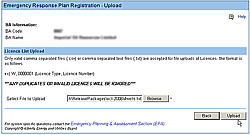
The Emergency Response Plan Registration Upload screen. For details click on the Details tab.
The ERP Registration Upload screen lets you upload licence numbers from a file and add these to your ERP registration.
To upload licence numbers from a file:
You must have create either a text file (.txt) or Comma Separated Value file (.csv) that contains the licence numbers you want to add to your ERP's Site Specific information. All licence numbers in this file must be in the correct format for the licence number to be included. If one licence number is incorrect, none of the licences will be added. See upload format for details. Here is how to upload this file.
- Click on the Upload List button on the Emergency Response Plan Registration screen to open this screen.
- Click on the Browse button. The Choose File dialog box opens.
- Navigate to the file containing the licence numbers you wish to upload and select this file.
- Click on the Open button. The dialog box closes and the complete path to this file is shown in the Select File to Upload entry field.
- Click on the Upload button. The licence numbers in the file will be added to your ERP site specific details. The Emergency Response Plan Registration screen will open when the process has completed.
All the licences listed in the upload file are now added to the Site Specific Details area of your ERP registration form. Consider breaking the upload into more than one file if you have more than 100 licences to add.
The Upload Format
The File Upload accepts both text files, typically files ending in .txt, and comma separated value files, those created in Excel and ending in .cvs. The licence information must be represents with the licence type expressed as a single letter (W,F, or P), followed by a comma, and then the licence number. Here is an example.
| An example of a valid upload file |
W, 0000939 W,0000937 W, 0000938 W, 0000936 F,11423 F,11425 F,11434 F,11435 P,1013 P,1017 P,10202 P,1022 |
Note: The licence type identifier must be a capital letter. A lower case licence type identifier will not be accepted. Also note that a space after the comma (,) is not accepted for facility and pipeline licences.
If you are using Excel to create a .cvs file for well licences:
Usually spreadsheet programs, like Microsoft Excel, will format a typical well licence number by not displaying the leading zeros. This means that the well licence W 0000939, would appear as W 939. This would produce an error when uploading. Here is how to set the correct format.
- Select the cells containing the licence number.
- click on the Format menu and select the Cells command. The Format Cells dialog box opens.
- Click on the Number tab.
- In the Type entry field, type in 7 zeros (0000000). See the figure below for an example.
- click on the OK button.
The well licence numbers will now be formatted in the correct licence number format. Now you can create the .cvs file to upload. To create the .cvs file using Microsoft Excel, click on the File menu and select the Save as command. Use the Save as type option to save the file as either a CSV Comma delimited (*.csv) file or as a Unicode Text (*.txt) file.
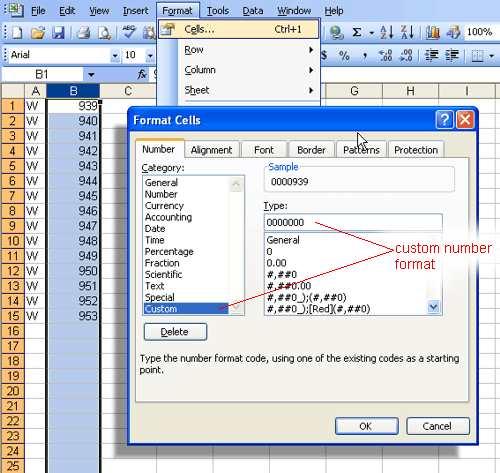
An example of formatting well licence number to preserve leading zeros.