Skip to Content
Emergency Response Plans   (Hide Navigation)

DDS Online Guide

The DDS online guide will assist you while using the DDS services.

Emergency Response Plans

The Emergency Response Plan service lets you prepare and electronically register and maintain Emergency Response Plans.

Using the ERP Registration Selection screen

The ERP Registration Selection screen lets you either choose to create a new ERP registration, or update a saved registration before submitting.

Using the Emergency Response Plan Registration screen

The ERP Registration screen lets you register a new ERP including specifying the contact information, plan details, and site specific details.

Using the ERP Registration Upload screen

The ERP Registration Upload screen lets you add site-specific licences to your ERP registration by uploading the licence numbers from a file.

Using the ERP Maintenance Selection screen

The ERP Maintenance Selection screen lets you select ERPs that have a status of Submitted, Revised, or Plan Received.

Using the Emergency Response Plan Maintenance screen

The ERP Maintenance screen lets you register updates to an existing ERP, indicate when the annual review is complete, and record when the plan is no longer in effect.

Using the ERP Maintenance Upload screen

The ERP MaintenanceUpload screen lets you add site-specific licences to your ERP by uploading the licence numbers from a file.

Using the ERP Advanced Search screen

The ERP Advanced Search screen lets you find a submitted ERP using a full or partial plan reference number, plan name, or BA id, or using a specific category and type.

Using the ERP Submission Acknowledgement screen

Review and print a summary of your submission.

questions and answers

Answers to some of the questions you have asked about our DDS services.

Details of the ERP Registration Upload screen
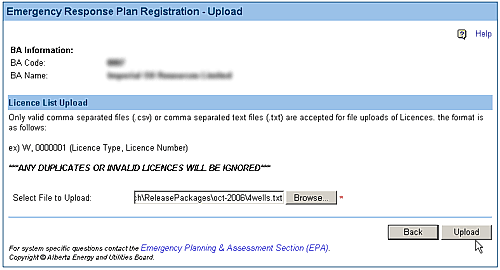
Emergency Response Plan Registration Upload

A sample of the Emergency Response Plan Registration Upload screen.
Items on the screen are described below.
For directions on using this screen, click on the Using tab.

Screen Item Descriptions

Each item on this screen is listed and described below.

Browse button
Click on the Browse button and navigate to the file containing the licence numbers you wish to upload.
Upload button
Click on the Upload button to add the licence numbers in the file to your ERP site specific details.


Digital Data Submissions Online Guide