- Using this screen
- Details of this screen
Using the Emergency Response Plan Registration screen
Using the Emergency Response Plan Registration screen
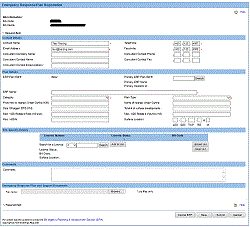
The Emergency Response Plan Registration screen. For details click on the Details tab.
The ERP Registration screen lets you prepare and submit an ERP registration. This includes the following capabilities:
- specify the contact information
- specify the plan details
- specify the site specific details
- save your plan registration during preparation
- upload the ERP and applicable supporting documentation
- submit your plan registration
- cancel an un submitted registration
To specify the ERP contact information:
Default contact information is displayed based on the settings of your DDS account. To change any contact information for this ERP registration:
- Type the appropriate information in the fields provided in the Contact Details section of this screen. Note that all contact details for the applicant must be provided. If applicable, all consultant details must be provided.
To specify the ERP plan details:
Each ERP must have a name, registration number, category, and type. New plan registrations, one that have not yet been saved, will be assigned a unique number when the plan is first saved and you will receive a submission acknowledgement notice when you save a plan registration. Note that this does not mean the plan registration has been submitted. To specify the other plan details follow these steps.
- If this plan is a supplement to an existing ERP, type in the ERP reference number of the parent plan in the Primary ERP Plan Ref # field. Alternatively, click on the Search button and use the ERP Advanced Search utility to find the ERP.
- Type in the name for this ERP in the ERP Name field. ERP names do not have to be unique.
- Use the Category drop-down list to select the ERP category.
- Use the Plan Type drop-down list to select the ERP plan type.
- HSC: (Hydrocarbon Storage Cavern) This is applicable for both new and existing operations.
- For new operations: Use this for storage facilities or pipelines that require a specific ERP.
These require that the ERP be reviewed and approves before operations begin. - for existing operations: Use this for storage facilities or pipelines that are already in production and require an ERP because of a licensee changes (purchase, transfer, merger,...) or that have an ERP that requires major revisions. Major revisions can include significant changes to the EPZ or significant changes in the roles, responsibilities, or procedures.
These require review and approval.
- For new operations: Use this for storage facilities or pipelines that require a specific ERP.
- HVP: (High Vapor Pressure) This is applicable for both new and executing operations.
- For new operations: Use this for pipelines or facilities that require a specific ERP.
These require that the ERP be reviewed and approves before operations begin. - For existing operations: Use this when the operations are on production but an ERP is now required due to a licensee change (purchase, transfer, merger,...) occurred.
These require review and approval.
- For new operations: Use this for pipelines or facilities that require a specific ERP.
- Sour Prod: (Sour Production ERP) Use this for new and existing sour production gathering systems including well, pipelines, facilities and any other operations requiring a specific ERP.
- For new operations: Use this for any sour production gathering system, including wells, pipelines, and/or facilities; any operation that requires a specific ERP.
These require that the ERP be reviewed and approved before operations begin. - For existing operations: Use this when the gathering system is already in production and require an ERP because of a licensee changes (purchase, transfer, merger,...) or when the ERP requires major revisions. Major revisions can include significant changes to the EPZ or significant changes in the roles, responsibilities, or procedures.
These require review and approval.
- For new operations: Use this for any sour production gathering system, including wells, pipelines, and/or facilities; any operation that requires a specific ERP.
- Sour Well Crit: (Sour Well Critical) Use this for critical sour wells undergoing drilling, completion, workover, testing, or re-entry operations.
These require review and approval before spud/operations begin. - Sour Well NonCrit: (Sour Well Noncritical) Use this for non-critical sour wells undergoing drilling, completion, workover, testing, or re-entry operations.
These require review and approval before spud/operations begin. - Operating Area Supp: (Operating Area Supplement) Use this for newly purchased operations or new area operations to become part of a multi-area sour production ERP or HVP ERP.
- Newly purchased operations require Operating Area Supplements when they are to be tied-in to existing approved sour production or HVP ERPs.
These require review and approval. - New area operations that are to become part of a multi-area HVP or source production ERP require Operating Area Supplements.
These require review and approval prior to commencement of operations.
- Newly purchased operations require Operating Area Supplements when they are to be tied-in to existing approved sour production or HVP ERPs.
- Tie-In Supp: (Tie-In supplement) Use this for new drilling and construction that is not on production or to tie-in the results of an additional surface development into an existing approved sour production ERP.
These require review and approval prior to commencement of operations. - Sour Well Supp: (Sour Well Supplement) Use this for drilling, completion, workover, or testing of a sour well within an existing sour production EPZ with surface developments within the well EPZ.
These require review and approval prior to spud/commencement of operations.
- HSC: (Hydrocarbon Storage Cavern) This is applicable for both new and existing operations.
- Type the distance, in kilometres, to the nearest urban centre in the Proximity to Urban Centre field. For a Site Specific ERP (i.e., drilling and completion) this distance is measured from the well itself. For an Operational ERP (i.e., production facility) this distance is measured from the main facility within the EPZ.
- Type in the name of the nearest urban centre in the Name of Urban Centre field.
- Type in the size, in kilometres, of the largest EPZ in the Size of EPZ field. For Operational ERPs, this number will correspond to the largest single EPZ within the entire ERP.
- Type in the number of surface developments in the Total # Surface Developments field. Surface developments can include, but are not limited to, permanent dwellings, manned facilities, public facilities, and trapper's cabins. Please refer to Directive 071 Emergency Preparedness and Response Requirements for the Petroleum Industry for a definition of a Surface Development.
- Type in the maximum rate at which H2S can be released during an incident in the Maximum H2S Release Rate field. The release rate is in m3/s.
- Type in the maximum volume of H2S that can be released during an incident in the Maximum H2S Release Volume field. This volume should be in m3.
- Type in the highest concentration of H2S, as a percent, in the Highest H2S% field.
- Type in the Legal Subdivision (LSD), Section (SEC), Township (TWP), Range (RG), and Meridian (M) for the surface location. If this is a production facility ERP, use the location of the main facility. If there are no facilities, use the location of a well within the gathering system or the location of a pipeline.
The plan details are now complete. Specific licences can be attached to this ERP in the Site Specific details area.
To specify the ERP site specific details:
Individual licences can be attached to this ERP in the Site Specific details area by following these steps. All licences which contain H2S, are physically located in the EPZ, and belong to or are operated by the company, must be added to the list.
- Select the licence type using the Search for a Licence drop-down list - F for Facility, P for Pipeline, or W for Well.
- Type in the licence number in the Search for a Licence field.
- Click on the Search button. The licence number will be verified and details shown in the fields below.
Alternatively, just click on the Search button and use the Advanced Licence Search utility. - Click on the Add to List button to add this licence to the list of licences attached to this ERP.
To upload licence numbers from a file and add to your ERP, see Using the ERP Registration Upload screen.
To save your ERP registration during preparation:
At any time while preparing your ERP registration, you can save the information you have prepared so far. This allows you to return to this form and complete it and submit it later. The AER cannot view saved ERP submissions. The ERP and supporting documents cannot be saved, they can only be uploaded when ready to submit.
- Click on the Save button. The Submission Acknowledgement screen will open showing the details of the ERP registration.
You are automatically notified by email when you submit information to the AER or when you save your work prior to submitting it. This is an option you can change from the User Options found under the DDS Administration branch.
To turn off automatic email notifications:
You are automatically notified by email when you submit information to the AER or when you save your work prior to submitting it. This is an option you can change. Here's how.
- Open the DDS Administration branch of the DDS navigator.
- Open the User Options administration category branch.
- Select the My Profile command. The User Option screen opens at the My Profile tab.
- Clear the Email Notification check-box.
- Click on the Save button.
You have now turned off the automatic email notification option. You will no longer receive emails when you submit information to the AER or when you save your work prior to submitting it.
To turn the option back on, repeat these steps and select the Email Notification check box.
To re-open a saved registration:
- Return to the Register Emergency Response Plan service.
- Select the Edit Existing ERP option on the Emergency response Plan Registration - Selection screen.
- Select the plan using the drop-down list.
- Click on the Continue button.
To upload the ERP and applicable supporting documentation:
The Emergency Response Plan and Support Documents screen lets you upload a zip file containing the ERP and any applicable supporting documentation (D71 Application Form, ERCBH2S csv file) and include with your ERP registration. Submissions that do not contain applicable documentation or submissions that do not meet the specified format requirements are subject to closure and the licensee may be required to re-submit.
To upload the ERP and Support Documents from a file:
You must create a Zip file (.zip) that contains the ERP and all applicable supporting documentation. Only Zip files will be allowed during the file upload. There is no naming convention for the zip file, however, the documents contained within the file are to be submitted using the proper naming convention as outlined below. Here is how to upload the Zip file.
- Click on the Browse button. The Choose File dialog box opens.
- Navigate to the Zip file containing the documents you wish to upload and select this file.
- Click on the Submit button. The documents will be submitted to the AER. The Submission Acknowledgement screen will open when the process has completed.
Note the ERP and Support Document file upload function can only be used once you are submitting to the AER. On the Registration screen, it cannot be used with the save function.
When submitting documentation to the AER include comments detailing the nature of the submission for new registrations and a list of all changes to the ERP for updates.
Document Naming Convention
Use these naming conventions for the documents contained within the Zip file:
ERP: [BA Code]-ERP[ERP#]-[Date] (example ABCD-ERP2100-24Jun2016)
Application Form: [BA Code]-[ERP#]-AppForm (example ABCD-2100-AppForm)
ERCBH2S CSV: [BA code]-[ERP#]-[Date] (example ABCD-2100-24Jun16.csv)The naming convention for ERCBH2S CSV files remains unchanged and can be found in the ERCBH2S User Guide on the AER Website.
The Upload Format
The File Upload accepts zip files only. The zip file is to contain the ERP document in a searchable Adobe PDF with Optical Character Recognition, an Adobe PDF copy of the D71 Application Form (for new registrations only) and the ERCBH2S CSV file (when applicable). All figures and spatial information submitted in the PDF documents must be at a scale that enables review and uses minimum 300 dpi for images.
To submit your ERP registration to the AER:
Your ERP registration is submitted to the AER to be used in conjunction with the ERP review. Saved ERP registrations are not visible to AER staff. The ERP and supporting documents can only be uploaded when ready to submit.
Once an ERP registration has been submitted, it is available for further modifications through the ERP Maintenance screen. To submit an ERP registration:
- Click on the Submit button. The ERP registration will be sent to the AER and the Submission Acknowledgement screen will open.
To cancel an un-submitted ERP registration form:
You can cancel a saved, but un-submitted ERP registration. Once an ERP Registration is cancelled it cannot be retrieved. Submitted ERP registrations cannot be cancelled. Here's how to cancel an ERP registration.
- Click on the Cancel ERP button, you will be prompted to confirm this cancellation. The Submission Acknowledgement screen will open.