- Using this screen
- Details of this screen
Using the ERP Advanced Search screen
Using the ERP Advanced Search screen
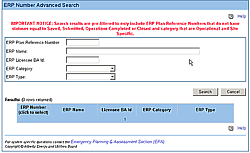
The Emergency Response Plan Advanced Search screen. For details click on the Details tab.
The ERP Advanced Search screen lets you find a submitted ERP the match some of the following information:
- a full or partial plan reference number
- a full or partial plan name
- a full or partial BA id
- a specific category and type
To search using a full or partial plan reference number
If you don't remember the entire ERP reference number, you can search for plan reference numbers that have the same beginning. Here's how.
- Click on the ERP Plan Ref # Search button to open this screen.
- Type in as many of the beginning numbers as you remember in the ERP Plan Reference Number field.
- Click on the Search button. All ERPs whose reference numbers begin with the numbers specified will be shown in the table.
- Click on the reference number of the plan you wish to select. Your previous screen will open with this plan being selected.
To search using a full or partial plan name
If you don't remember the entire ERP reference number, you can search for plan looking for plan names that have the same beginning. Here's how.
- Click on the ERP Plan Ref # Search button to open this screen.
- Type in as much of the beginning name as you remember in the ERP Name field.
- Click on the Search button. All ERPs whose plan names begin with the name specified will be shown in the table.
- Click on the reference number of the plan you wish to select. Your previous screen will open with this plan being selected.
To search using a full or partial BA id
If you don't remember the entire ERP reference number, you can search for plan looking for BA Ids that have the same beginning. Here's how.
- Click on the ERP Plan Ref # Search button to open this screen.
- Type in as much of the beginningof the BA Id as you remember in the ERP Licence BA Id field.
- Click on the Search button. All ERPs whose BA Codes begin with the code specified will be shown in the table.
- Click on the reference number of the plan you wish to select. Your previous screen will open with this plan being selected.
To search using a specific category and type
If you don't remember the entire ERP reference number, you can search for plan looking specific plan categories and/or types. Here's how.
- Click on the ERP Plan Ref # Search button to open this screen.
- Select the category of the plan of interest using the ERP Category drop-down list.
- Select the type of the plan of interest using the ERP Type drop-down list.
- Click on the Search button. All ERPs whose category and/or type is the same as specified will be shown in the table.
- Click on the reference number of the plan you wish to select. Your previous screen will open with this plan being selected.