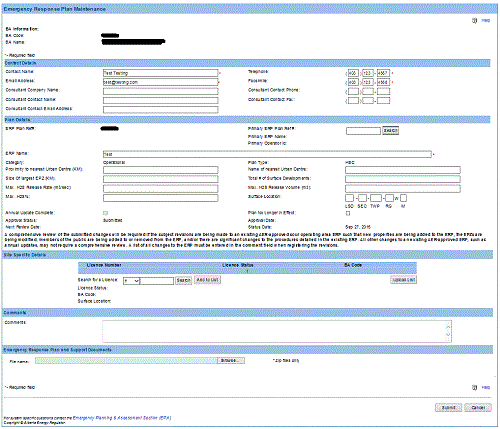
Details of the Emergency Response Plan Maintenance screen
Screen Item Descriptions
Each item on this screen is listed and described below.
| Plan Details |
- ERP Name
- Type in updates to the Name of this Emergency Response Plan.
- Proximity to Urban Centre (in KM)
- Type in the updated distance, in kilometres, to the nearest urban centre in the Proximity to Urban Centre field. The name of the new urban centre must also be typed into the Name of Urban Centre field.
This field only accepts a distance that is less than 10000 km. If this is not enough, add a comment in the Comments field stating that the Proximity to Urban Centre is and the actual distance.
- Size of EPZ
- Type in the new size, in kilometres, of the drilling EPZ in the Size of EPZ field.
This field only accepts a distance that is less than 1000.00 km. If this is not enough, add a comment in the Comments field stating that the Size of EPZ is and the actual distance.
- Max. H2S Release Rate
- Type in the new maximum rate at which H2S can be released during an incident in the Max. H2S Release Rate field. The release rate is in m3/s.
This field only accepts a rate that is less than 10000.0000 m3.s. If this is not enough, add a comment in the Comments field stating that the Max. H2S Release Rate is and the actual rate.
- Max. H2S%
- Type in the new highest concentration of H2S, as a percent, in the Max. H2S% field. This is only required for Single Well ERPs and Sour Well Supplements.
- Annual Update Complete check box
- Select the Annual Update Complete check box to indicate you have completed your annual review and update. Annual updates are due every year on the anniversary of the initial approval date.
|
- Name of Urban Centre
- Type in the new name of the nearest urban centre in the Name of Urban Centre field. The distance to this urban centre must also be typed into the Proximity to Urban Centre field.
- Total # of surface developments
- Type in the new number of surface developments in the Total # Surface Developments field.
This field only accepts a number that is less than 10000. If this is not enough, add a comment in the Comments field stating that the Total # of surface developments is and the actual number.
- Max. H2S Release Volume
- Type in the new maximum volume of H2S that can be released during an incident in the Max. H2S Release Volume field. This volume should be in m3.
This field only accepts a volume that is less than 1000.00 m3. If this is not enough, add a comment in the Comments field stating that the Max. H2S Release Volume is and the actual volume.
- Surface Location
- Type in any changes to the Legal Subdivision (LSD), Section (SEC), Township (TWP), Range (RG), and Meridian (M) for the surface location. For a production facilities, use the location of the main facility.
- Plan No Longer in Effect check box
- Select the Plan No Longer in Effect check box to indicate when a plan is no longer in effect.
|
| Site Specific Details |
- licence table
- The licences associated with your ERP are listed in the licence table. To remove a licence, click on the Delete link to the left of the licence. Use the licence entry fields or the Search button to specify a licence to add to the list, and then click on the Add to List button.
|
- Search button
- Click on the Search button to open the and search for a licence using the Advanced Licence Number Search screen. When a licence has been selected, click on the Add to List button to add the new licence to those listed in the licence table.
- Add to List
- Click on the Add to List button to add the licence shown in the licence field, to those listed in the licence table.
- Upload List button
- Click on the Upload List button to add licences from a file. The Upload screen opens.
- Clear List button
- Click on the Clear List button to remove all licences from the licence table.
|
- Comments
- Type in any comments you wish to be included with the plan registration, including a list of all changes to the ERP, in the Comments field.
- Emergency Response Plan and Support Documents
- Click on Browse to select the zip file containing the ERP and any applicable supporting documents required for submission. Once you click on the submit button, the file will be uploaded and submitted to the AER.
- Submit button
- Click on the Submit button to submit your updated ERP. The Submission Acknowledgement screen opens showing the details of the ERP registration submission.