The Navigation tab
(click the image for details)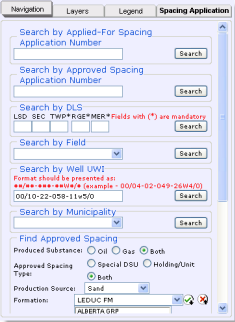
The Navigation tab showing options to narrow geographic focus and spacing attributes.
Narrowing spacing attributes
Once you've reduced your map extents to an area of interest by Narrowing the map focus, your next step is to view approved and applied-for spacing within those extents.
It's a good idea to enable the Development Entity Areas layer using the Layers tab of the Well Spacing map. If your desired area falls within one of the development entity areas, the standard well density is automatically increased and you may not need to complete a well spacing application. See AER Directive 065 for details.
To narrow spacing attributes
- Using the Navigation tab, in either the Find Approved Spacing, or Find Applied-For Spacing pane, select from the following options:
- The substance being produced.
- The spacing type.
- The source of production.
- One or more formations. Using the Formation drop-down list, select the name of the desired formation. Either click the desired name, or hover your cursor over it so that it's highlighted and then press Enter.
To remove an item from the list of selected formations, select it and then click .
You can also select All Formations or All Zones.
.
You can also select All Formations or All Zones.
- Click Search at the bottom of either the Find Approved Spacing or the Find Applied-For Spacing pane, depending on which pane you used to select the desired criteria.

The example criteria above retrieves approved spacing for Holdings for both oil and gas that are producing from Sand in either the Cooking Lake or the Leduc formations.
An attribute table with spacing that matches the criteria defined above and that's within your current map extents appears below the map.
- Using the attributes table, click
 in the desired row to highlight the Approved or Applied-For spacing on the map. Click a second time to clear highlighting on the map.
Clicking in a row when spacing is already highlighted for a different row causes the map to behave differently depending on whether the attribute table displays Approved or Applied-For spacing. For Approved spacing, the map highlights all the selections on the map that you click in the attribute table. For Applied-For spacing, the map clears the previous selection and only displays the selection you just clicked.
The map scale doesn't change, so the full extents of the spacing you clicked above may not be visible.
- To zoom to the extents of the spacing, click Zoom to highlighted spacing (
 ) on the Map toolbar to the right of the map. The map redraws at a scale at which the full extents of the spacing appear.
Formation searches are very specific
Searching by formation is specific to the formation(s) selected. For example, if you select the EDMONTON GRP, you see spacing that applies to the entire Edmonton Group, not spacing that applies to only the Lower Edmonton or the Upper Edmonton.
We recommended you begin your investigation of the spacing within an area by selecting the All Formations option from the Formation drop-down list. Once you have a feel for the area, you can focus your search on specific formations.
When you search using All Formations, pools also appear in the attribute table in the Formation/Pool column following the name of the formation to which they pertain.